


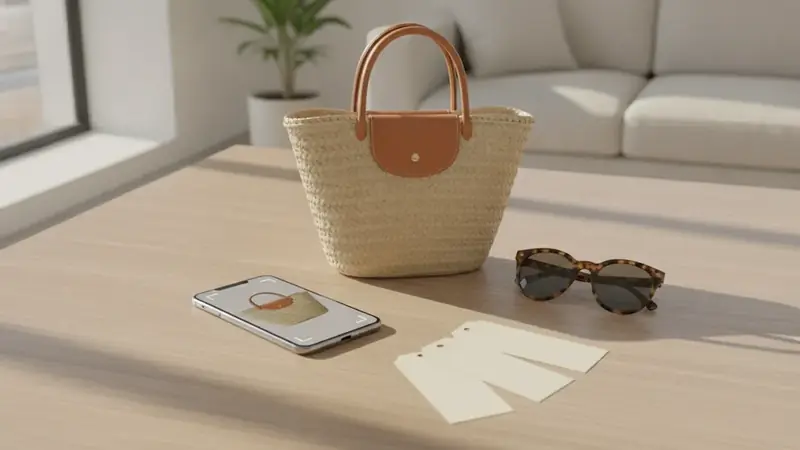
What you get from one photo
One photo gets you a name, a set of matching listings, and a price. That is the outcome. You point the phone at something you can see but cannot name, and you end up with a product page you can check before buying.
A product search by image means the picture is your query instead of typed words. Price ID reads the shape, color, logo and details in the photo, then looks for visual matches. Where it recognizes the item, it gives brand and model; where it does not, it shows similar products.
| You have | You can use |
|---|---|
| The item in front of you | A fresh photo |
| A picture in your camera roll | A saved image |
| A post you saw online | A screenshot |
| A package with a code | The barcode scan |
Find a product by photo, step by step
- Install Price ID. On iPhone and iPad it is on the App Store as "What's It Worth: Price Scanner" (iOS 18 or later), and on Android it is "Price ID: What is This Worth?". You need the app in hand before the item is out of sight.
- Pick the finder that fits. There are 11, tuned for things like Furniture & Home, Electronics or Sneakers & Shoes, and a tuned finder reads category details better than a general one.
- Take the photo, or choose one. Fill the frame with the item and hold steady for a second, because the app can only match what it can see.
- Use a screenshot if the item is on a screen. Pick the saved image, or on Android share it straight from the other app to Price ID, which saves a step.
- Add a text hint if you know anything. A word like "leather" or "vintage" narrows the search, and it costs you five seconds.
- Read the match first. Check the brand and model against what is in your hand, since a close lookalike is easy to mistake for the real thing.
- Open the price list. New buying prices and used resale estimates are shown separately, so you do not mix up a store price with an eBay-style asking range.
That is the whole loop. If you want to shop by picture instead of typing guesses into a search box, this is the shortest route from camera to listing.
Fixing a search that goes wrong
Most bad results come from the photo, not the app. Here are the five problems you will actually run into.
The photo is blurry
You see a vague match, or a result for the wrong kind of object. Retake it with both hands steady, tap the screen to focus on the item, and wipe the lens first (pocket lint is a real culprit). Light matters as much as focus; move toward a window if the room is dim.
The background is cluttered
The matches look like the stuff behind your item, such as the shelf or the table. Move the item onto a plain surface, or step closer until it fills the frame. A text hint naming the item also tells the search what to ignore.
The item is partly hidden
You see matches that fit only the visible half. Move whatever is covering it, or shoot from the side where the logo, tag or shape is clear. If you cannot move it, photograph the most distinctive part, like a clasp, a stitched label or the front panel.
The item is plain or unbranded
You get similar products, not one exact answer. This is the real limit: with no logo or visible model, the app can only offer close matches. Look for a tag, a stamped mark or a barcode and scan that. If the thing is a tool, the identify-tool page covers how a tool identifier narrows down a name.
There are too many lookalikes
Dozens of products seem to fit. Add a text hint for material, color or size, switch to the finder for that category, and check the model details. For furniture, asking what furniture is this works better once you add the style or material to the hint.
Which input suits which situation?
A live photo is best when the item is in front of you. A screenshot is better for something you spotted on a feed and saved. A barcode scan wins in a store aisle, because the code is exact and a photo of a box can be fuzzy.
If you are standing in a shop checking whether a price is fair, scan the barcode and see whether it is cheaper online. If you only want a product barcode scanner app, the dedicated barcode pages go deeper than this one.
On iPhone, an item identifier app like Price ID is a good fit when you take most of your pictures in the camera roll. On Android, treat Price ID as a product scanner app that accepts shared images from other apps, which is handy if you browse a lot.
Is the first match always right?
No. Matches and prices move around; the seller's page shows what you will really pay. Used values are estimates from current asking prices, not sold prices and not an appraisal; condition, model and included accessories move them.
That is also why the photo needs to show the brand. The more the app can read, the less it has to guess.
What to do once you have a match
Save it to a collection so you can find it again, and share it with whoever asked you to find it. If the price looks high, set a reminder to re-check it later (Price ID does not watch prices for you; the reminder just nudges you to look again).
If you are asking where can i find this item cheaper, look at the lowest price found for your region and the price range. Pick your shopping region and currency first so the stores shown are ones you can buy from. And if the price is steeper than you want, the dupe finder shows lookalike styles from other brands.
Quick questions
How do I find a specific item from a picture?
Start with a sharp photo of just the item in good light, then run it through a visual search tool. If the first results are only similar, crop the picture tighter or add details such as the brand, color or model number to narrow things down.
What is a free app that can identify items?
Several free apps can identify items from a photo, including Google Lens and Pinterest Lens. Price ID is another one that is free to try, and it names the product and lists stores with prices, though daily free scans are limited.
How do I find a product by photo on my phone?
Open Price ID, take a photo of the item or pick a saved image, and read the matches. The app names the brand and model when it recognizes them and lists stores with prices.
Can I find a product from a screenshot?
Yes, Price ID accepts screenshots and saved images as well as new photos. Android users can push a photo into Price ID from any app that has a share button.
Why does my photo search only show similar products?
Price ID can only offer similar matches when an item is plain or unbranded and shows no logo or model. Adding a text hint or scanning a barcode on the item usually narrows it.
What makes a good photo for product search by image?
A sharp, well-lit photo with one item filling the frame and a plain background works best. Show the logo, tag or distinctive detail if the item has one.