


What shopping by image actually is
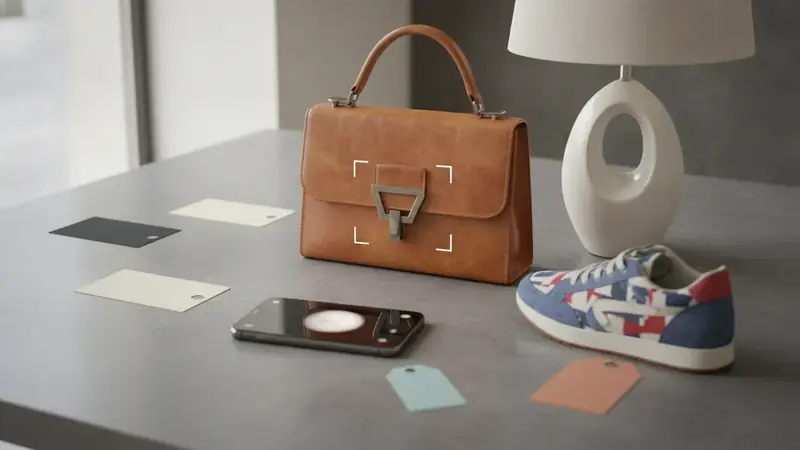
Visual search turns a picture into a product lookup. Instead of guessing words like "mid-century walnut sideboard with tapered legs," you hand over the image and let the matching do the describing. People also call it shop by photo or shop by picture; it is the same idea.
Big search engines and single-store shopping apps have camera search too. Price ID differs in two ways: it compares prices across available online stores, and it adds a resale estimate for used items.
Step 1: start with a photo
You're at the shelf, the label is in Portuguese, and you have no idea what the thing is called. Open Price ID and take a picture. Center the item and keep the background plain if you can.
This is good for anything you can see in person: a lamp at a friend's place, sneakers on a stranger (be polite), a gadget at a flea market. It falls short on generic goods. A plain black mug has little to match, so expect similar items instead of the exact one.
Step 2: or pick a screenshot or saved image
Most shopping inspiration lives in your camera roll. Price ID lets you pick a screenshot or any saved image, and the Shop a Screenshot finder scans your latest screenshot with one tap, whether it came from Instagram, TikTok or Pinterest. Android also lets you send a picture to Price ID from the share menu of another app.
A screenshot search is quick, but busy screens hurt. Crop out the comments, captions and stickers first when you can, because the app has to guess which object you mean.
Step 3: add a text hint when the picture is not enough
A short text hint focuses the search. If the photo shows a whole room, type "floor lamp" and the app knows where to look. Color, material or a partial brand name also help.
Keep the hint short. One or two words steer the search; a long sentence just competes with what the image shows.
Step 4: read the results
Price ID identifies the product using visual matches and AI, including brand and model when they are recognizable. You then see matching listings with direct store links, the lowest price found for your shopping region, the price range and the potential savings. Rental, monthly-plan and junk listings are filtered out.
There are 11 finders tuned per category, including Clothes & Outfits, Handbags, Sneakers & Shoes, Makeup & Beauty, Watches, Jewelry, Electronics, Furniture & Home, and Toys & Collectibles. Picking the right one gives the matching a better start.
Matches, prices and availability vary, so confirm details and the final cost with the retailer before you pay.
Step 5: check buying options and the resale estimate
New prices and used estimates are shown separately, so you do not mix them up. The buying side lists stores. The resale side gives an estimated range for used items, a typical price and example listings.
That estimate comes from current asking prices on eBay, not completed sales. It is not a guaranteed sale price or a professional appraisal; condition, model and included accessories all move the number. Price ID is not affiliated with eBay or any retailer.
Step 6: look for similar for less
Sometimes the original costs too much. The similar for less option works as a dupe finder, showing lookalike styles from other brands in clothes, bags, shoes, jewelry and home decor. It is a judgment call: you get the look, not the label, and quality can differ from the original.
Which items work best
Anything with distinctive shape, print or branding matches well. Clothes are a good example; if you want to find this dress from a saved post, the Clothes & Outfits finder is the one to try. Shoes work the same way: when a friend's feet make you wonder what shoes are these, a photo of the side profile beats any typed guess.
- Clothes, handbags and sneakers with visible styling
- Watches and jewelry with clear faces or settings
- Furniture and home decor with a distinctive silhouette
- Toys, collectibles and electronics with logos or model marks
Barcodes are another input. In a store, scan the barcode or UPC and see if the item is cheaper online.
Using it on iPhone
On iPhone and iPad (iOS 18 or later) the app is listed on the App Store as "What's It Worth: Price Scanner." As a visual search app, it gives you limited free scans each day, which is enough to try a few finds before deciding on anything more.
Shop by image on an Android phone
On Google Play the name is "Price ID: What is This Worth?" There, the shop by image app gives Android users the first scan free, then one free scan a day, with up to two extra a day if you watch a short video. The free tier shows ads; Pro removes the limits and the ads.
Saving, sharing and a note on privacy
You can save finds into collections, share them, and set reminders to re-check prices later. A reminder is a nudge to look again, not an alert that a price dropped.
People often ask is it safe to upload product photos to an app like this. Pick images of products instead of people, and crop out anything personal before you scan. Choose your shopping region and currency in the settings; the language is set separately.
When Price ID is not for you
If you already know the exact model name, a normal search is faster. If you need a certified authentication or a formal appraisal, Price ID does neither. It is also the wrong tool for identifying people, and for unbranded basics you will mostly see similar items.
If you want to find product by photo and then compare stores before spending, that is its job.
Quick questions
Can I take a picture of something and then find out what it is?
Yes, visual search tools can compare your picture to millions of product images and suggest what the item is. Items with a visible logo, label or distinctive shape are identified most reliably. Plain or unbranded objects often return only similar-looking items.
Is there a free app to identify items from a photo?
Yes, several apps identify items from a photo at no cost, usually with some limits on daily searches. Google Lens is free, and Price ID is free to try with a limited number of scans. Paid tiers generally remove the limits.
Why does image search sometimes return only similar items instead of the exact one?
Image search matches shapes, colors and patterns, so products without a logo, label or unique design look like many others. Unbranded or generic items, and photos taken at odd angles or in poor light, make an exact match harder. A closer, clearer photo or a short text hint can improve the results.
How do I shop by image on my phone?
Open Price ID, take a photo or pick a screenshot, and optionally add a text hint. The app then shows the identified product, store listings and prices.
Can I shop by photo from a screenshot?
Yes. Price ID can scan a screenshot or saved image, and the Shop a Screenshot finder scans your latest screenshot with one tap.
Will shop by image find the exact product?
Often it can, including brand and model when recognizable. Plain or unbranded items may only get similar matches.