


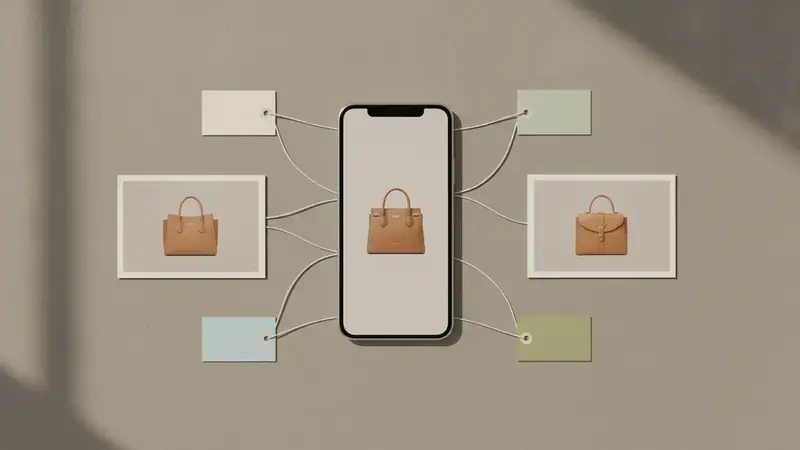
What you get from a reverse image search on iPhone
You start with a picture and end with a name, a source, or a store page. Which of those you get depends on the tool. Photos can tell you what a plant or landmark is. A browser can show where else the image appears. A shopping app can tell you what the product is and what it costs.
Pick the one that matches your question, because the three do different jobs.
Steps to search by image on iPhone
- Open the Photos app and tap the picture. Visual Look Up only works on photos stored on the phone, so save the image first if it came from a message or a web page.
- Look at the info button (the i) at the bottom. If it has little sparkles on it, iOS recognized something; tap it and swipe up to see the result. Visual Look Up covers things like plants, landmarks and some objects, not every product, so do not expect it to name a pair of sneakers.
- If there are no sparkles, open Safari and go to an image search page. Use the upload or camera icon in the search box and choose the photo. The browser then looks for matching or similar images across the web.
- Read the first few results for a product name, a store, or the original post. Pages that repeat the same name are usually a good sign.
- If the goal is buying or pricing the item, open a photo search app such as Price ID on your iPhone. Choose the photo or screenshot, add a short text hint if the item is hard to spot, and let it match the product.
That last step is where most shoppers end up, since a name alone does not tell you what to pay.
Fixes when the search finds nothing useful
The info button has no sparkles
You see the plain i, or nothing special at all. Visual Look Up did not recognize the subject. Crop the photo so the item fills the frame and try again, or move on to a browser search or an app.
The browser shows only unrelated images
The results look like the same color or mood, but not the same item. A busy photo is the usual reason. Crop out the background, people and text, then upload the cropped version.
The screenshot is full of buttons and captions
The tool seems to focus on the app interface instead of the product. Crop to the product only before searching. In Price ID you can also add a text hint, such as the type of item, to point the search at the right thing.
Only similar items come back
Plain or unbranded things often get lookalike matches instead of an exact one. That is a real limit of the app, and of any image search. Prices, availability and matches also vary, so confirm details and the final cost with the retailer before you pay.
The image is too small or blurry
Results turn vague when there is little detail. Take a fresh photo in good light, straight on, with the label or logo visible if there is one.
Using Price ID once the search works
Price ID identifies the product from visual matches and AI, with brand and model when it can recognize them. It then lists matching listings with direct store links, compares prices across available online stores, and shows the lowest price found for your shopping region. New buying prices and used resale estimates appear separately. The resale range comes from current asking prices on eBay, so it is an estimate, not a sale price or an appraisal.
Saw something in a post? You can shop from screenshot with one tap on your latest screenshot. Standing in a store? A barcode scan works as a price scanner iphone shoppers can use to check whether the item is cheaper online. Save a find to a collection, share it, or set a reminder to check the price again.
What about reverse image search on Android?
Android has its own built-in options, and the browser method works the same way there. Price ID is also on Google Play as a visual search app, and on Android you can share an image from another app straight to it. The free tier has ads, with a first scan free and then a daily free scan.
On iPhone, you can also use the search by photo image approach inside Price ID by picking any saved picture from your library.
Quick questions
Can an iPhone do reverse image search?
Yes, an iPhone can reverse image search through Safari, the Google app, or the Visual Look Up feature in Photos. Visual Look Up works on recognizable things like landmarks, plants, pets and art, while a browser upload covers a wider range of images.
How do I reverse search a picture on my phone?
Open a reverse image search site such as Google Images in your browser, choose the camera or upload option, and pick the photo from your library. The results show visually similar images and pages where the picture appears.
How to search from a screenshot in iPhone?
Take the screenshot, then open it in Photos and tap the info button if sparkles appear, or upload it to an image search in Safari or the Google app. Cropping the screenshot to the object you care about gives cleaner results.
Can I identify a product using a photo?
Yes, a clear photo of a product can often lead to its name, brand and model through visual matching. Price ID is a shopping app that reads a photo or screenshot and shows matching listings with store links, though plain or unbranded items may only get similar matches.
Why does Visual Look Up not show on my iPhone photo?
Visual Look Up only appears when the iPhone recognizes a supported subject, such as a landmark, plant, animal or artwork. It also needs a compatible iPhone and a recent iOS version, and many everyday objects and products are not covered.