


What you get when you search with a picture
Instead of typing words, you hand a search tool a picture and it returns pages and images that look like it. Depending on the tool, that can mean the original source, bigger copies, similar scenes, or a product you can buy.
That last difference matters. A general image search answers "where else does this picture appear?" A product-focused search answers "which product is pictured, and what does it cost?" Decide which question you have before you start, because it changes which tool you open.
Steps to search by image
- Get the best copy of the picture you can. A larger, sharper file gives the search tool more to compare, and a screenshot of a screenshot loses detail fast.
- Pick your route: the image search page of a search engine, the search-image option in your browser, or an app. Browser options usually appear when you press and hold (phone) or right-click (computer) on a picture, though the wording differs between browsers.
- Upload the file, or paste the image if the page accepts pasting. Some pages also take an image web address, but uploading the actual file is more reliable when a site changes its image links.
- Search the whole picture first. The background and layout are clues, especially when you want the source.
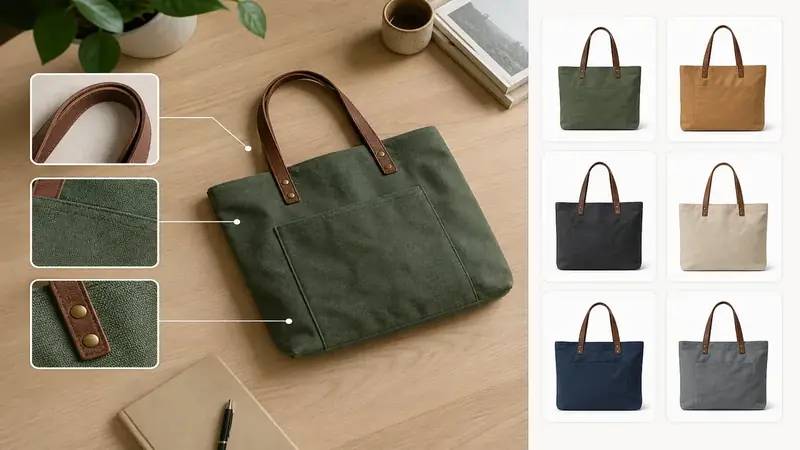
- Search again with a tight crop around the one thing you care about, such as a bag, a logo or a label. Cropping removes clutter that pulls results off course.
- Open the actual result pages and skip the thumbnails. Compare the full-size image, the date, and any credit or caption.
- Repeat in a second tool. Each one indexes different pages, so a miss in one is not a verdict.
If you want the search free, the image pages of the big search engines cost nothing to use; you only need a picture. Google search by image is one of those routes, and it works from a computer browser or a phone.
Which kind of search fits your goal
| You want to | Best route | What you get |
|---|---|---|
| Find where a photo came from | Search engine image search | Copies, older versions, source pages |
| Check if a picture was reused | Search engine plus a second tool | Pages that show the same image |
| Buy the thing in the picture | Shopping app | Product match, store listings, prices |
| Value a used item | Shopping app with resale estimates | An estimated price range |
A reverse image search for shopping is a different job from tracking down a photo's origin, and search engines are tuned for the second one. Plenty of results will be blog posts and stock photos instead of stores.
Searching by image on iPhone and Android
On a phone, the easiest inputs are a screenshot, a saved photo, or a fresh picture from your camera. Many mobile browsers let you press and hold an image on a page to find a search-image option.
For reverse image search on iphone, the browser route works for tracing a photo, and an app is better when the goal is a product. Price ID is a picture search app you can get on iPhone and iPad (iOS 18 or later); it takes a photo, a screenshot or a saved image, and you can add a short text hint to steer the search toward the right item.
On Android, the same idea applies, and you can share an image from another app straight into Price ID. If you want a reverse image search app that returns store listings instead of lookalike photos, that share-to-app step saves you a trip through your gallery.
Troubleshooting when the search goes wrong
You see the right picture but the wrong product
The results show similar scenes, not the item. Crop tightly around the object and search again, and if the app allows it, add a short text hint such as the type of item. Plain or unbranded items may only get similar matches, so expect lookalikes there.
You see no results, or only unrelated ones
The image may be new, private, or on a page the search tool cannot read. Try a larger copy, then a second search tool. Heavily edited or filtered pictures often fail, so use the least-edited version you have.
You see a blurry or tiny result
Your upload is probably a low-quality copy. Go back to the original file or take a fresh photo in good light with the item filling most of the frame.
You see the image but not where to buy it
General image search is not built to list stores. Use a tool that matches products and shows listings. If you want to find this product from a picture, a shopping app will list stores and prices, while a search engine mostly returns pages that merely show the photo.
You see a screenshot full of interface clutter
Notifications, buttons and captions confuse matching, and may expose private details. Crop the screenshot down to the item before you upload it.
What to do once the search works
Open the result and check it against your picture: same shape, same details, same color. A close thumbnail is not proof, and for any purchase you should confirm the details and final cost with the retailer, since prices, availability and matches vary.
If you just want to name an object, try asking what is this and read the top match against your photo. If you are shopping, Price ID shows matching listings with store links and the lowest price it found for your region, and used items get an estimated resale range based on current asking prices, not sold sales. Save the find to a collection and set a reminder to re-check the price later.
If you ever need alternatives to camera search apps, the browser route and desktop uploads described above cover the same ground with no install.
Quick questions
How can I download an image from a link?
Open the link in a browser, then right-click the picture on a computer and choose Save image as. On a phone, press and hold the picture and pick Download image or Save to Photos.
How do I search by image on my phone?
Take a photo or pick a saved image or screenshot, then upload it to an image search page, use your browser's search-image option, or open a shopping app. Crop to the item first for better matches.
How to reverse image search on a computer?
Open a search engine's image search, then upload the file, drag it in, or paste the image or its web address. Search the full picture first, then a tight crop.
Why does search by image not find my picture?
The image may be new, private, heavily edited, or on a page the search tool cannot index. Try a larger, unedited copy and a second search tool.